A website that suddenly crawls, times out or shows a “503 Service Unavailable” error isn’t always a server problem. Sometimes it’s an attack. A WordPress DDoS attack floods your site with so much fake traffic that real visitors can’t get through.
I clean up and secure WordPress sites every week, and DDoS attacks are among the most stressful incidents for site owners: the site is down and every minute costs sales, leads and trust. The good news is that, with the right setup, most WordPress sites can absorb these attacks without visitors noticing.
This guide goes deeper than the usual “install a security plugin” advice. You’ll learn how a WordPress DDoS attack works, how to confirm one in your server logs, the exact Cloudflare, Apache and Nginx rules I use to block them, and a step-by-step plan for when your site is under attack right now.
In this guide:
- What is a WordPress DDoS attack?
- Signs of a DDoS attack on WordPress
- How to prevent a DDoS attack on WordPress
- Responding to a WordPress DDoS attack
- DDoS myths that leave sites exposed
- FAQ
What is a WordPress DDoS attack?
DDoS stands for Distributed Denial of Service. In a WordPress DDoS attack, thousands of devices send requests to your website at the same time. The goal is to use up your server’s CPU, memory, bandwidth or database connections until it can’t respond to anyone.
The word “distributed” is the important part. A simple DoS attack comes from one machine, so you can block one IP address and it’s over. A DDoS attack comes from a botnet: a network of hacked computers, home routers, security cameras and rented cloud servers spread across the world. Blocking one IP does almost nothing when the traffic comes from 20,000 of them.
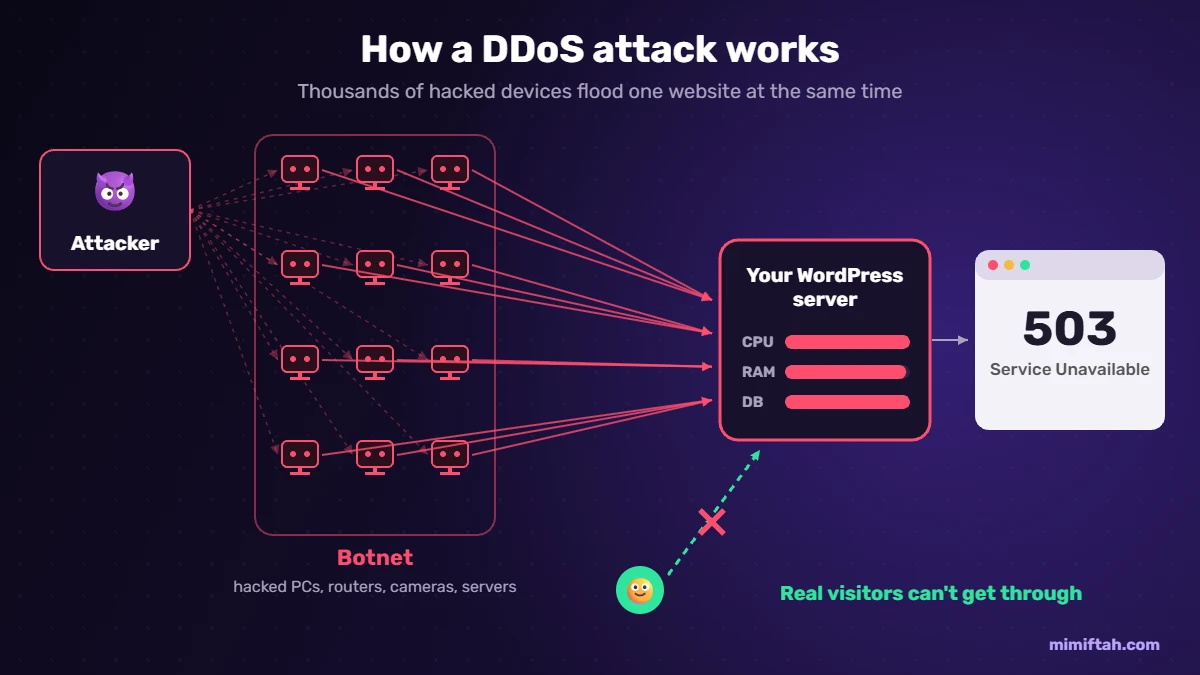
How DDoS attacks are executed
Attackers rarely use their own computers. They build botnets by infecting poorly secured devices (often IoT devices with default passwords), or they simply rent one. So-called “booter” or “stresser” services sell attacks by the minute, which is why even small sites get hit. Once the attacker controls the network, they send one command and every device starts sending traffic at your site.
DDoS attacks fall into three main groups, and each one needs a different defense:
| Type | How it works | Examples | What stops it |
|---|---|---|---|
| Volumetric | Sends more data than your network connection can carry | UDP floods, DNS and NTP amplification | CDN or host network filtering |
| Protocol | Exhausts server or firewall resources by abusing how connections open | SYN floods, fragmented packets | CDN, host firewall, SYN cookies |
| Application layer (Layer 7) | Sends requests that look real but are expensive for WordPress to answer | HTTP floods on search, wp-login.php, xmlrpc.php, admin-ajax.php | WAF rules, rate limiting, caching |
Volumetric and protocol attacks are measured in gigabits per second; you can’t fix those on the server itself, because the network pipe is full before WordPress even sees a request. Application-layer attacks are measured in requests per second and are the ones WordPress site owners deal with most.
Why a DDoS attack hits WordPress sites hard
A cached homepage is cheap to serve: the web server returns a ready-made HTML file in a few milliseconds. But many WordPress requests can’t be cached: search results, login attempts, cart and checkout pages, and AJAX calls. Each one starts PHP, loads WordPress and every active plugin, and runs database queries. A few hundred of those requests per second can bring a shared hosting plan to its knees, even though the traffic volume is tiny compared with a network flood.
WordPress also has a few well-known endpoints attackers like to target:
| Endpoint | Why attackers target it |
|---|---|
/wp-login.php | Every login attempt hashes a password and queries the database. Floods here overlap with brute force attacks. |
/xmlrpc.php | One request can try hundreds of passwords with system.multicall, and its pingback feature has been abused to send traffic at other sites. |
/?s=random | Every unique search term bypasses the page cache and runs a database query. |
/wp-admin/admin-ajax.php | Often uncached and used by plugins on every page load. |
/wp-json/ | REST API requests run PHP and can be expensive, depending on the plugins you use. |
| WooCommerce cart and checkout | Never cached, and add-to-cart requests create sessions and database writes. |
The impact on your website
- Downtime: visitors see errors or endless loading, and you lose sales, leads and trust.
- SEO damage: if Googlebot keeps getting 5xx errors for a long period, it slows crawling and rankings can drop.
- Hosting costs and suspension: on usage-based plans you may pay for the traffic; on shared hosting your account may be suspended to protect other customers.
- Cover for other attacks: while you’re busy with the outage, attackers may try logins or exploit a vulnerable plugin.
- Lost data in forms and orders: customers who time out in the middle of a checkout often don’t come back.
Common motivations for attackers
- Extortion: “pay us or we keep your site down” (ransom DDoS). Never pay: it marks you as a target that pays.
- Competition: taking down a rival store during a sale, launch or holiday season.
- Hacktivism: targeting a site for its views, country or industry.
- Distraction: keeping you busy while another attack runs in the background.
- Revenge and boredom: cheap stresser services let almost anyone launch an attack for a few dollars.
Signs of a DDoS attack on WordPress
A DDoS attack on WordPress can look a lot like a sudden spike in real visitors, or like a broken plugin. These are the signs I look for first.
Indicators of a DDoS attack on your WordPress site
- The site becomes very slow or unreachable, but nothing changed on your side (no update, no new plugin, no campaign).
- Your hosting dashboard shows CPU, RAM or entry processes at 100%.
- You see many 503 (service unavailable), 508 (resource limit reached), 502 or 504 (gateway timeout) errors.
- Analytics shows a traffic jump with a very high bounce rate and almost zero time on page. (Many bots don’t run JavaScript, so analytics may show nothing while the server melts.)
- Your host emails you about a resource limit, or suspends the account.
- Huge numbers of requests to a single URL, such as wp-login.php or xmlrpc.php.
- The admin area is slow too, and even simple pages time out.
How to check your access log
The server access log is the single most useful tool during a WordPress DDoS attack. You’ll find it in cPanel (Metrics → Raw Access), Hostinger hPanel (Advanced → Access logs), Plesk (Logs), or on a VPS at /var/log/nginx/access.log or /var/log/apache2/access.log. Each line looks like this:
203.0.113.47 - - [23/Nov/2026:10:14:02 +0600] "POST /xmlrpc.php HTTP/1.1" 200 412 "-" "Mozilla/5.0"That’s the IP, the time, the request, the status code, the size, the referrer and the user agent. If you have SSH access, these commands show the top IPs, the most requested URLs and the busiest user agents:
# Top 10 IP addresses
awk '{print $1}' access.log | sort | uniq -c | sort -rn | head -10

# Top 10 requested URLs
awk '{print $7}' access.log | sort | uniq -c | sort -rn | head -10

# Top 10 user agents
awk -F'"' '{print $6}' access.log | sort | uniq -c | sort -rn | head -10

# Requests per minute (spot when the attack started)
awk '{print substr($4,2,17)}' access.log | uniq -c | tail -20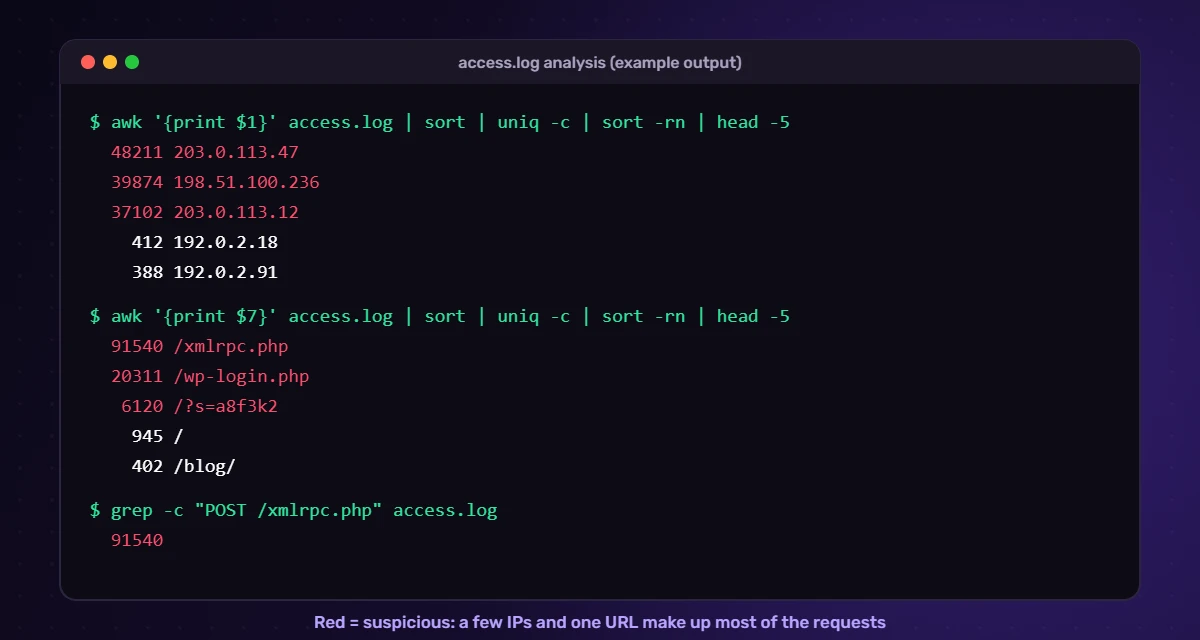
On a normal day, your top IPs have a few hundred requests and your top URLs are your homepage and popular posts. During an attack, a handful of IPs or a single URL will have tens of thousands of hits. That’s your pattern.
How to monitor traffic for unusual activity
You can’t spot an attack if you don’t know what normal looks like. Set up these basics before you need them:
- Uptime monitoring: a free service such as UptimeRobot or Jetpack Monitor emails you the moment the site goes down.
- CDN analytics: Cloudflare shows requests per second, top countries, top IPs and top paths in real time under Security → Events and Analytics.
- Security plugin live traffic: Wordfence and similar plugins show live requests hitting WordPress and which were blocked.
- Resource graphs: check your host’s CPU and memory graphs to see exactly when the load started.
- A baseline: note your normal requests per minute and CPU use, so you can tell what “abnormal” looks like.
Examples of attack patterns in your logs
| What you see | What it usually means | First action |
|---|---|---|
| Thousands of POST requests to /xmlrpc.php | XML-RPC flood or brute force through XML-RPC | Block xmlrpc.php |
| Random search URLs like /?s=a8f3k2 every second | Cache-busting HTTP flood aimed at your database | Rate-limit or challenge search |
| Thousands of POSTs to /wp-login.php | Login flood or brute force | Rate-limit login, add challenge |
| Same user agent from hundreds of IPs | Botnet traffic | Block or challenge that user agent |
| Requests with no referrer and no cookies to one page | Scripted flood, not real visitors | Challenge that path |
| Spike from data-center networks (AWS, OVH, DigitalOcean) | Rented servers or a stresser service | Challenge those ASNs |
Compare this with a real viral spike: real visitors arrive from social media or Google, land on different pages, load images and CSS, and stay for a while.
How to prevent a DDoS attack on WordPress
The best way to survive a WordPress DDoS attack is to stop bad traffic before it reaches your server. Think of it as layers: each layer blocks what it can and passes less to the next one.
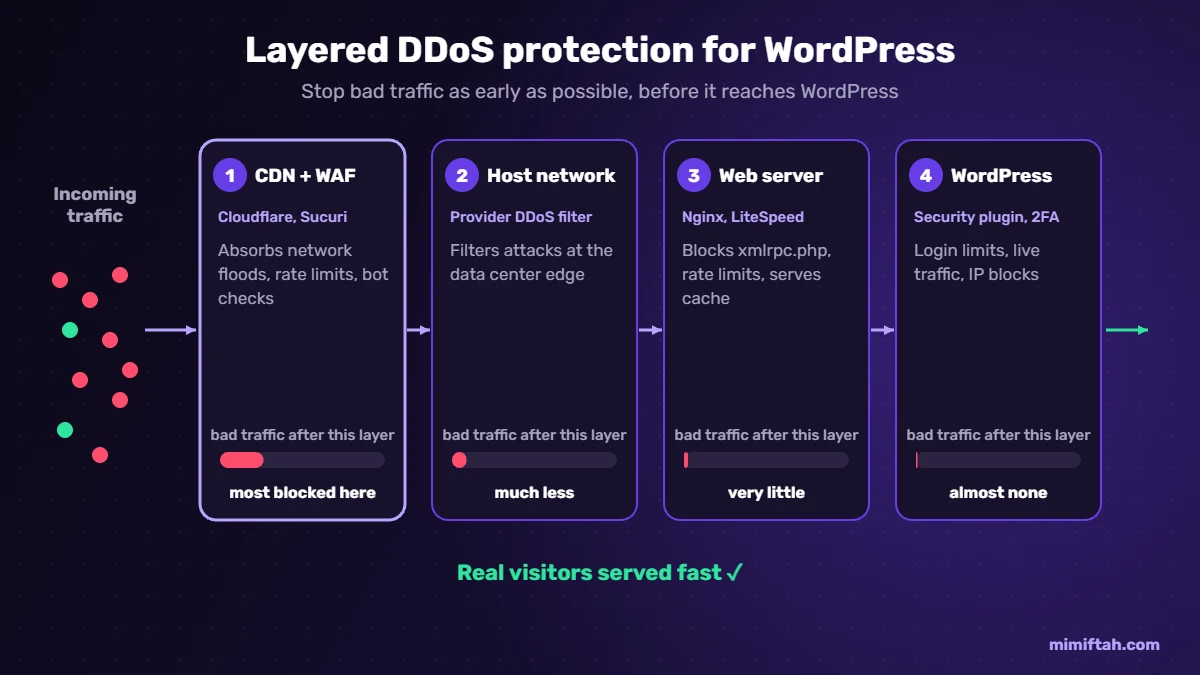
Here’s the setup I use on client sites, from most to least important.
1. Put your site behind a CDN and web application firewall
A CDN with a WAF, such as Cloudflare or Sucuri, sits in front of your server. Your domain points to the CDN, the CDN passes clean traffic to your host and absorbs the rest across its global network. Cloudflare’s free plan already includes unmetered DDoS protection against network-level attacks. To set it up:
- Create a Cloudflare account, add your domain and let it scan your DNS records.
- Change your domain’s nameservers at your registrar to the two Cloudflare nameservers it gives you.
- Make sure the records for your website (
@andwww) are proxied (orange cloud). - Set SSL/TLS to Full (strict) if your host has a valid SSL certificate.
- Turn on Bot Fight Mode under Security → Bots. (Test it first: some uptime monitors and payment webhooks can be challenged.)
2. Add Cloudflare firewall rules for WordPress
Custom rules (Security → WAF → Custom rules) let you block or challenge traffic by path, country, user agent and more. These are the rules I start with. Replace BD with the countries your admins log in from.
Rule 1: block XML-RPC (Action: Block)
(http.request.uri.path eq "/xmlrpc.php")Rule 2: challenge logins from outside your country (Action: Managed Challenge)
Paste this into the expression editor (“Edit expression”). Keep the brackets: they make sure the country check applies to both the login page and the admin area. admin-ajax.php is left out because many plugins use it on the front end.
((http.request.uri.path eq "/wp-login.php") or (starts_with(http.request.uri.path, "/wp-admin/") and http.request.uri.path ne "/wp-admin/admin-ajax.php")) and not ip.geoip.country in {"BD"}Rule 3: rate-limit login and search (Security → WAF → Rate limiting rules)
- Match: URI path equals
/wp-login.php, methodPOST. - Rate: 5 requests per 10 seconds per IP.
- Action: Block for 10 seconds (or longer on paid plans).
Add a second rate limit on search (http.request.uri.query contains "s=") if your logs show search floods. The free plan includes a limited number of rules, so start with whichever endpoint you see attacked most.
Hide your origin IP. Cloudflare can’t protect a server attackers can reach directly. Check that no DNS record (such as mail, ftp or cpanel) points unproxied to the same IP as your website, and if you run a VPS, allow web traffic only from Cloudflare’s IP ranges. If your origin IP has leaked in the past, ask your host for a new one after moving behind Cloudflare.
Learn more about how the different firewall layers work in my guide to types of firewall.
3. Block and rate-limit at the web server
If traffic does reach your server, stop it before PHP runs. On Apache or LiteSpeed hosting (most shared hosts, including Hostinger), add this to the .htaccess file in your WordPress root, above the # BEGIN WordPress block:
# Block XML-RPC
<Files xmlrpc.php>
  Require all denied
</Files>

# Block requests with no user agent
RewriteEngine On
RewriteCond %{HTTP_USER_AGENT} ^-?$
RewriteRule ^ - [F]
On an Nginx VPS, add a rate limit zone in the http block of nginx.conf, and use it in your site’s server block:
# nginx.conf, inside http { }
limit_req_zone $binary_remote_addr zone=wplogin:10m rate=5r/m;
limit_req_zone $binary_remote_addr zone=wpsearch:10m rate=20r/m;

# site config, inside server { }
location = /xmlrpc.php { deny all; }

location = /wp-login.php {
    limit_req zone=wplogin burst=3 nodelay;
    include fastcgi_params;
    fastcgi_param SCRIPT_FILENAME $document_root$fastcgi_script_name;
    fastcgi_pass unix:/run/php/php8.3-fpm.sock;  # match your PHP version
}
Test with nginx -t before reloading, and change the PHP socket to match your server. On a VPS you can also add fail2ban to ban IPs that hit wp-login.php or return many 403 errors.
4. Use a security plugin for the application layer
A security plugin such as Wordfence, Solid Security or All-In-One Security adds a layer inside WordPress. It can’t stop a huge flood on its own, because the traffic has already reached your server, but it helps with smaller attacks:
- Limit login attempts and lock out IPs that fail repeatedly.
- Rate-limit crawlers and humans that request too many pages per minute (Wordfence: Firewall → Rate Limiting).
- Block known malicious IPs and user agents.
- Show live traffic so you can see what’s happening during an incident.
- Add two-factor authentication for every admin account.
5. Close the endpoints you don’t need
- Disable XML-RPC if you don’t use the mobile app, Jetpack or remote publishing. Block it at Cloudflare or the server (above), not just with a plugin, so requests never reach PHP.
- Protect wp-login.php with 2FA, a CAPTCHA (such as Cloudflare Turnstile), or a custom login URL so floods hit a 404 instead of a login form.
- Restrict the REST API users endpoint so it doesn’t list usernames to anonymous visitors.
- Turn off pingbacks and trackbacks in Settings → Discussion.
If you prefer code, this snippet in a small plugin or your child theme’s functions.php turns off XML-RPC methods and pingbacks inside WordPress. It’s a backup, not a replacement for blocking the file at the server:
add_filter( 'xmlrpc_enabled', '__return_false' );
add_filter( 'xmlrpc_methods', function ( $methods ) {
    unset( $methods['pingback.ping'], $methods['pingback.extensions.getPingbacks'] );
    return $methods;
} );
6. Cache as much as possible
Every page served from cache costs almost nothing, so caching makes your site far harder to take down. Use full-page caching (LiteSpeed Cache, WP Rocket or your host’s cache), let the CDN cache static files, and add object caching (Redis or Memcached) if your host supports it. On Cloudflare, a Cache Rule that caches HTML for logged-out visitors lets the CDN answer most requests without touching your server.
Also move WordPress cron off page loads. By default, WordPress checks scheduled tasks on visits, which adds work during a flood. Add this line to wp-config.php and set a real cron job in your hosting panel to call wp-cron.php every 5 minutes:
define( 'DISABLE_WP_CRON', true );7. Choose hosting with built-in DDoS protection
Your host is the last line of defense. Good hosts filter attacks at the network edge before they reach your server. When you compare hosting, check for:
- Network-level DDoS mitigation included in every plan.
- A server-level web application firewall.
- Isolated resources, so another customer’s attack doesn’t take your site down (cloud or VPS plans are better than basic shared hosting here).
- 24/7 support that can actually act during an incident.
- Automatic daily backups.
If you’re moving to a new host, my Hostinger coupon code guide has tested prices for their cloud and VPS plans.
8. Keep everything updated and backed up
Outdated plugins don’t cause DDoS attacks, but attackers often combine floods with exploits. Keep WordPress, themes and plugins updated, remove what you don’t use, and keep off-site backups. See my list of the best WordPress backup plugins and the full WordPress security checklist.
Which protection do you need?
| Protection | Stops network floods | Stops Layer 7 floods | Best for |
|---|---|---|---|
| Cloudflare Free | Yes | Partly (custom rules, limited rate limiting) | Blogs, portfolios, small business sites |
| Cloudflare Pro or Sucuri WAF | Yes | Yes (managed WordPress rules) | Stores, lead-gen sites, sites that get targeted |
| Host DDoS protection | Yes, at the data center | Varies by host | Every site, as a base layer |
| Server rules (.htaccess, Nginx) | No | Yes, small to medium floods | Sites on a VPS or with SSH access |
| Security plugin | No | Small floods, brute force | Every WordPress site, as the inner layer |
Responding to a WordPress DDoS attack
If your site is under a WordPress DDoS attack right now, stay calm and work through these steps in order. A WordPress DDoS attack can usually be brought under control within an hour.
Steps to take during a WordPress DDoS attack
- Confirm it’s an attack. Check uptime alerts, your host’s resource graphs and the access log. Rule out a broken update, a backup job or a real traffic spike.
- Turn on emergency protection. If you use Cloudflare, switch on I’m Under Attack mode (Security → Settings, or the Overview page). Every visitor gets a short browser check, which stops most bots instantly.
- Find the pattern. Use the log commands above or Cloudflare’s Security Events to find the URL, country, IP range, ASN or user agent the attack uses.
- Block or challenge that pattern. Add a custom rule for the target URL (for example, block
/xmlrpc.php), rate-limit it, or challenge the attacking countries or networks. - Reduce the load. Make sure page caching is on, temporarily disable heavy features like on-site search or related posts, and pause scheduled tasks and backups.
- Contact your host. Many hosts can filter attacks at the network level, raise limits temporarily, or move you to a protected IP.
- Keep notes. Write down times, URLs, IPs and every change you made. You’ll need them for your host, for a police report and for your review.
If you’re not on Cloudflare yet
You can still move to Cloudflare during a WordPress DDoS attack. Nameserver changes usually take effect within minutes to a few hours. Add your site, switch the nameservers, turn on Under Attack mode straight away, and then ask your host for a new server IP, because the attacker already knows the old one.
How to contact your hosting provider
Open a support ticket or live chat and mark it urgent. A clear message gets faster help. You can copy this template:
Subject: URGENT: DDoS attack on example.com

Hi, my site example.com has been under a DDoS attack since
23 Nov 2026, 10:05 (UTC+6).

- Target URLs: /xmlrpc.php and /wp-login.php
- Top attacking IPs: 203.0.113.47, 198.51.100.236, 203.0.113.12
- Requests: about 90,000 per hour (normal is about 2,000)
- Already done: Cloudflare Under Attack mode, blocked xmlrpc.php

Can you filter this traffic at the network level, or move the
site to a protected IP? Thank you.
If your host can’t or won’t help during an attack, it’s a sign you need one with stronger DDoS protection.
After a WordPress DDoS attack: check for damage
- Look for new admin users, changed passwords or unknown plugins.
- Run a malware scan, in case the flood was a distraction.
- Check that your backups ran and that you can restore them.
- Review Google Search Console for crawl errors and request a recrawl of key pages.
- Keep your emergency rules saved but disabled, so you can switch them on in seconds next time.
Why incident response and recovery planning matter
The worst time to work out what to do is while your site is down. A short incident plan turns a panic into a checklist. Write down, in one place:
- Logins for your host, domain registrar, DNS and CDN (stored in a password manager).
- Who does what: who checks logs, who talks to the host, who tells customers.
- Your emergency steps, such as switching on Under Attack mode.
- Where your backups are and how to restore them.
- How you’ll tell customers, for example through social media or email.
After each incident, review what happened: which defense worked, what was missing and how long it took to recover. Then fix the gaps and test your backups.
DDoS myths that leave WordPress sites exposed
- “My site is too small to be attacked.” Stresser services make attacks cheap, and many hit random targets or every site on a shared server.
- “A security plugin protects me.” It helps, but it runs after the traffic reaches your server. Big floods have to be stopped upstream.
- “More server power will fix it.” Bigger servers buy time, not protection. Filtering is what stops an attack.
- “Blocking the attacker’s IP is enough.” A botnet can have tens of thousands of IPs. Block patterns (paths, ASNs, user agents), not single addresses.
- “Once it’s over, it’s over.” Attacks often come back. Keep your rules and plan ready.
Frequently asked questions
Can a DDoS attack hack my WordPress site?
Not by itself. A DDoS attack overloads your site so real visitors can't reach it; it doesn't steal data or change files. But attackers sometimes use a DDoS as a distraction while they try other attacks, so check your logins, users and files after an incident.
How long does a DDoS attack last?
Anything from a few minutes to several days. Many attacks are short bursts that repeat over hours or days. A good CDN or firewall can absorb most of them without your visitors noticing.
Is Cloudflare's free plan enough to stop DDoS attacks?
For most small and medium WordPress sites, yes. The free plan includes unmetered DDoS protection against network-level attacks. For targeted attacks on wp-login.php, xmlrpc.php or search pages, add custom firewall rules and rate limiting, or upgrade to a paid plan for more rules and a managed WAF.
Can a security plugin stop a DDoS attack?
Only partly. Plugins like Wordfence run on your server, so the traffic has already reached WordPress before they can block it. They help against small application-layer floods and brute-force bursts, but large attacks must be stopped before they reach your server, by a CDN, a cloud WAF or your host.
Should I disable XML-RPC in WordPress?
If you don't use the WordPress mobile app, Jetpack or a service that publishes through XML-RPC, yes. Block xmlrpc.php at the server or firewall level so requests never reach PHP.
How do I know if it's a DDoS attack or just a traffic spike?
Real spikes come from many different sources that behave like people: they land on popular pages, load images and CSS, stay and click around, and come from expected countries and referrers. DDoS traffic usually hits the same URL over and over, often from unusual countries, data-center IP ranges or a single user agent, with no referrer.
Who should I contact during a DDoS attack?
Your hosting provider first, then your CDN or firewall provider if you use one. Give them the time the attack started, the URLs being hit and examples of the IPs or user agents you see in your logs.
Is it illegal to launch a DDoS attack?
Yes. In most countries, including the US, UK, EU member states and Bangladesh, launching or paying for a DDoS attack is a criminal offense under computer misuse laws. If you're attacked, keep your logs: they're evidence if you report it to the police.
Does moving to a bigger server stop DDoS attacks?
Not on its own. More CPU and RAM buy you time against small floods, but a botnet can always send more traffic than one server can handle. Filtering the traffic before it reaches the server is what actually stops an attack.
Final thoughts
You can’t stop someone from launching a DDoS attack at your WordPress website, but you can make sure it doesn’t take you offline. Put your site behind a CDN and firewall, block unused endpoints like XML-RPC, rate-limit logins and search, cache aggressively, choose a host with real DDoS protection, and have a plan ready before you need it.
If your WordPress site is under a DDoS attack right now, or you’d like me to set up this protection for you, get in touch. I handle WordPress security, malware removal and hardening for sites of every size.