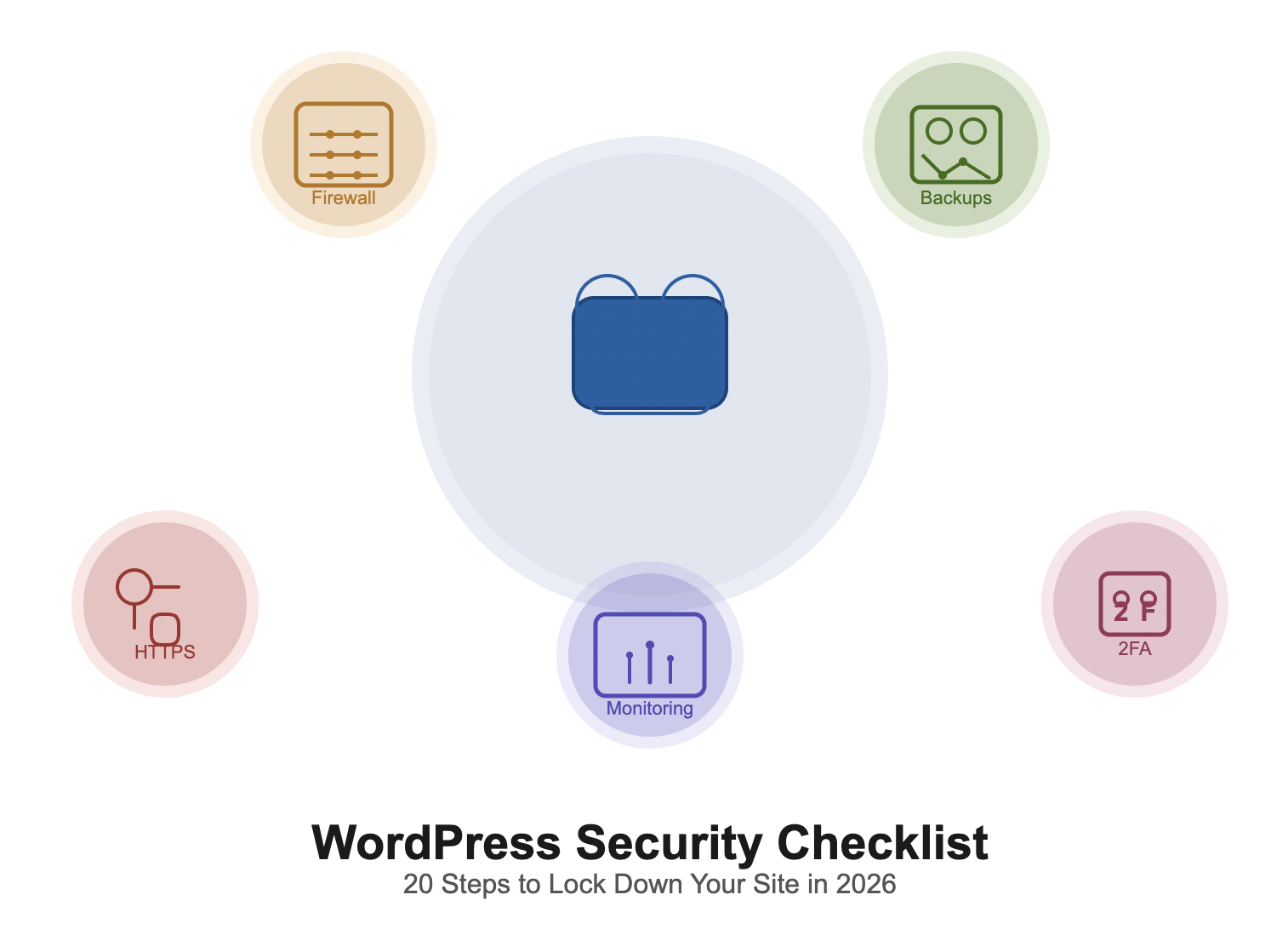
WordPress Security Checklist: 20 Steps to Lock Down Your Site in 2026

Published: May 11, 2026 | Last updated: May 11, 2026 | 18 min read

  • WordPress powers 43% of all websites, making it the most targeted CMS by attackers (W3Techs, 2025)
  • 97% of WordPress vulnerabilities originate in plugins, not core (Wordfence, 2024)
  • This checklist covers 20 actionable steps across hosting, access control, file system hardening, firewalls, backups, and monitoring
  • Plugins alone don’t secure a site – layered hardening across the server, application, and user layers is required
  • Complete all 20 steps and you close the attack vectors behind over 90% of WordPress compromises (Wordfence, 2024)
  • WordPress admin access with an Administrator-level account
  • Hosting control panel access (cPanel, Plesk, or your host’s custom dashboard)
  • SFTP credentials and a client like FileZilla or Cyberduck
  • SSH access if your host supports it (speeds up permission changes significantly)
  • 90-120 minutes for a first-time full run; 30 minutes for quarterly reviews

Step 1: Move to a Host With Isolated, Server-Level Security

Your hosting environment determines the baseline security posture of everything above it. On traditional shared hosting, a single compromised account on the same server can be used to read files, inject backdoors, or pivot into neighboring accounts – depending on how the host has configured PHP and file isolation.

Choose a host that runs accounts in isolated containers or uses suEXEC/phpsuexec to run PHP as the site owner rather than a shared www-data user. This means a compromise on another account cannot read your wp-config.php or write to your webroot. Managed WordPress hosts like Kinsta (Google Cloud), WP Engine, and Cloudways (on DigitalOcean or Vultr) all enforce this by default. If you’re on a shared plan without container isolation, no amount of plugin-level hardening fully compensates for it.

Server-level security features to confirm with your host: ModSecurity WAF rules at the Apache/Nginx layer, automatic PHP version management, outbound email filtering to catch compromised form mailers, and daily server-side malware scans independent of any WordPress plugin.

Step 2: Keep WordPress Core on Auto-Update for Minor Releases

WordPress core vulnerabilities are publicly catalogued in the WPScan database the moment a patch is released. The window between public disclosure and active exploitation is often under 24 hours for high-severity CVEs.

Minor releases (e.g., 6.5.1 to 6.5.2) are security and bug fix drops that carry no breaking changes. Enable automatic background updates for these by adding the following to your wp-config.php:

define('WP_AUTO_UPDATE_CORE', true);

For major releases (e.g., 6.5 to 6.6), run them on a staging environment first. Check plugin and theme compatibility against the new version using the WordPress compatibility checker, then apply to production within 72 hours. Holding a major update for weeks because “it might break something” is a worse risk than the compatibility issue itself.

Step 3: Update Plugins and Themes on a Fixed Schedule

Plugins are the primary attack surface. Wordfence’s 2024 threat report attributes 97% of WordPress vulnerabilities to plugins. The attack chain is straightforward: a CVE is published for a plugin, proof-of-concept exploit code appears on GitHub within hours, and automated scanners start hitting every site running the affected version within days.

Go to Dashboard > Updates weekly. Apply all plugin and theme updates that have been out for more than 24 hours – the 24-hour wait gives the community time to flag any update that itself introduces a regression. For high-traffic or revenue-generating sites, run plugin updates on staging first, confirm no breakage, then push to production.

Equally important: audit installed plugins quarterly. Delete any plugin not actively used. Deactivated plugins still exist on disk and their files are still publicly accessible via direct URL in some configurations – deactivation is not the same as deletion.

Step 4: Delete Every Unused Theme

WordPress ships with multiple bundled themes. Every theme on disk is a potential attack surface regardless of whether it’s active. Theme files – particularly functions.php and template files – can be directly exploited if they contain unpatched vulnerabilities, even in an inactive theme.

Go to Appearance > Themes. Keep your active theme and its parent theme if it’s a child theme. Delete everything else, including all Twenty-Twenty-X default themes. This is a five-minute task that eliminates an entire category of file-based vulnerabilities.

Step 5: Run One Security Plugin and Configure It Fully

A security plugin handles application-layer firewall rules, login rate limiting, file integrity monitoring, and malware signature scanning. The mistake most site owners make is installing one and leaving it at default settings, which is only marginally better than nothing.

PluginFirewallFile Scanning2FAFree Tier
WordfenceYesYesYesYes
Solid SecurityYesLimitedYesYes
Sucuri SecurityCDN-level (paid)YesNoPartial

Install one. After installation, go through every settings panel: set the firewall to “Extended Protection” mode in Wordfence (requires an .htaccess rule it writes automatically), configure email alerts for new admin users and file changes, and run an immediate full scan to establish a clean baseline. Running two security plugins simultaneously causes filter hook conflicts and can silently disable functionality in both.

Step 6: Replace the Default “admin” Username

Credential stuffing and brute force tools include “admin” as the first username in every wordlist. If your primary admin account still uses this username, you’re making the attacker’s job significantly easier – they only need to crack the password.

WordPress doesn’t support in-place username changes. The correct process: create a new Administrator account with a non-obvious username, log in as that new user, then go to Users > All Users, select the old “admin” account, and delete it – choosing to reassign all its content to the new account when prompted. Confirm the new account has full Administrator capabilities before deleting the old one.

Step 7: Set and Enforce a Strong Password Policy

A 12-character password mixing uppercase, lowercase, numbers, and symbols takes modern GPU-accelerated cracking tools years to brute force. An 8-character lowercase-only password falls in under an hour (Hive Systems, 2024). The gap between those two configurations is three minutes of setup.

For single-admin sites, use a password manager like Bitwarden or 1Password to generate and store a 20+ character random password. For multi-user sites, install Password Policy Manager for WordPress and set organization-wide minimums: 14 characters, at least one uppercase, one number, one symbol, and a 90-day expiry for admin-level accounts. Apply the policy retroactively so existing users are forced to update on next login.

Step 8: Enforce Two-Factor Authentication on All Admin Accounts

2FA eliminates the entire class of credential-based attacks. Even a fully compromised password – leaked in a data breach, phished, or brute-forced – cannot be used to log in without the second factor. For any site where the admin account has financial or personal data access, 2FA is non-negotiable.

Install WP 2FA or use the 2FA feature built into Wordfence or Solid Security. Require it for all admin-level accounts at minimum. The setup takes under five minutes per user via an authenticator app like Google Authenticator or Authy. Use TOTP-based apps rather than SMS – SIM-swapping attacks make SMS-based 2FA unreliable. Generate and store backup codes in your password manager immediately after setup.

Step 9: Rate-Limit Login Attempts to Stop Brute Force Attacks

WordPress’s default behavior allows unlimited login attempts with no throttling. A botnet running distributed brute force attacks can cycle through thousands of password combinations per minute across multiple IP addresses without triggering any built-in defense.

In Wordfence, go to Firewall > Brute Force Protection. Set the lockout threshold to 5 failed attempts, lockout duration to 60 minutes, and enable the option to immediately block IPs that try usernames known not to exist on your site (this catches bots probing for “admin”). Also enable rate limiting for 404 errors – bots that are scanning for vulnerable plugin files generate a high volume of 404s before they find a valid target.

Whitelist your own IP address under Wordfence > Tools > Whitelist before enabling lockouts, or you risk locking yourself out during testing.

Step 10: Move the Default Login URL Away from wp-login.php

The default login endpoint at yoursite.com/wp-login.php is the most scanned URL on the web for WordPress sites. Moving it to a non-standard path doesn’t replace authentication security, but it eliminates the entire category of automated login traffic hitting the endpoint – which reduces server load and removes a fingerprinting vector attackers use to confirm a site runs WordPress.

Install WPS Hide Login and set a custom path that isn’t /login or /admin, which are also commonly targeted. Something site-specific is harder to enumerate. After changing the URL, flush all caches before testing. Confirm the new URL works, then confirm the old /wp-login.php and /wp-admin/ (when not logged in) return a 404 or redirect rather than a login form.

Step 11: Disable XML-RPC Unless You Explicitly Need It

XML-RPC is WordPress’s remote procedure call interface, originally built for desktop blogging clients and now used primarily by Jetpack and the official WordPress mobile app. If you use neither, it’s an open endpoint that attackers exploit in two ways: as a brute force vector (a single XML-RPC request can test hundreds of username/password pairs at once via the system.multicall method) and as a DDoS amplification vector using the pingback method.

Check whether anything on your site actively requires XML-RPC before disabling it. If you use Jetpack, disabling XML-RPC will break it – use Jetpack’s own XML-RPC protection features instead. If you don’t use it, add this to your .htaccess file:

<Files xmlrpc.php>
  Order Deny,Allow
  Deny from all
</Files>

Alternatively, Solid Security disables it in one click under Security > Settings > WordPress Tweaks > XML-RPC. After disabling, confirm with a tool like curl -d "<methodCall><methodName>system.listMethods</methodName></methodCall>" https://yoursite.com/xmlrpc.php – you should get a 403, not a list of methods.

Step 12: Audit and Correct File System Permissions

Misconfigured file permissions are consistently in the top five causes of WordPress compromise (Sucuri, 2024). Overly permissive settings – particularly 777 on directories or 666 on files – allow any process running on the server to modify WordPress files, making malware injection trivial. Poorly configured directory permissions are also a vector for directory guessing attacks, where attackers enumerate directory structures to map your plugin and theme stack.

The correct permission set:

LocationCorrect PermissionWhat It Allows
WordPress files644Owner read/write, group and public read only
WordPress directories755Owner full, group and public read/execute
wp-config.php600Owner read/write only – no group or public access
.htaccess644Owner read/write, others read only

Set these via your host’s file manager or via SFTP. If you need to locate your SFTP credentials first, this guide on how to find your FTP information covers every major host’s process. For bulk permission changes via SSH:

find /path/to/wordpress/ -type f -exec chmod 644 {} \;
find /path/to/wordpress/ -type d -exec chmod 755 {} \;
chmod 600 /path/to/wordpress/wp-config.php

After running these, verify by checking a sample of files via SFTP to confirm the changes applied.

Step 13: Lock Down wp-config.php at Both the File and HTTP Level

wp-config.php holds your database host, name, username, password, and all WordPress secret keys and salts. A read of this file gives an attacker complete database access and the ability to decrypt any encrypted data stored by WordPress.

Beyond the 600 file permission set in Step 12, block direct HTTP access at the server level. Add this block to your .htaccess:

<files wp-config.php>
  order allow,deny
  deny from all
</files>

Additionally, move your WordPress secret keys and salts out of wp-config.php entirely and into a separate file stored outside the webroot. Include it in wp-config.php with a require_once pointing to the non-public path. This way, even if wp-config.php is somehow read, the cryptographic material isn’t in it.

Rotate your secret keys and salts any time you suspect a breach – WordPress provides a fresh set at https://api.wordpress.org/secret-key/1.1/salt/. Replacing them invalidates all existing login sessions, which is exactly what you want after a suspected compromise.

Step 14: Force HTTPS and Set HSTS

SSL/TLS is table stakes. Any site still serving login forms or admin pages over HTTP is transmitting credentials in plain text across every network hop between the user and the server.

After installing your SSL certificate (Let’s Encrypt via your host, or via Cloudflare’s proxied SSL), add the following to .htaccess to force all HTTP traffic to HTTPS:

RewriteEngine On
RewriteCond %{HTTPS} off
RewriteRule ^(.*)$ https://%{HTTP_HOST}%{REQUEST_URI} [L,R=301]

Then add HTTP Strict Transport Security (HSTS) to prevent protocol downgrade attacks. Add this to .htaccess or your Nginx config:

Header always set Strict-Transport-Security "max-age=31536000; includeSubDomains; preload"

The preload directive submits your domain to browser HSTS preload lists, so browsers refuse HTTP connections to your domain entirely – even on first visit. Submit at hstspreload.org after confirming HTTPS is fully stable across all subdomains. Update WordPress site and home URLs under Settings > General to use https:// if not already set.

Step 15: Disable File Editing from the Dashboard

The Theme and Plugin File Editor in the WordPress dashboard (/wp-admin/theme-editor.php) lets any Administrator-level user modify PHP files directly in the browser. If any admin account is phished, credential-stuffed, or session-hijacked, an attacker can inject a PHP web shell into functions.php in under 60 seconds without needing FTP access.

Disable it permanently in wp-config.php:

define('DISALLOW_FILE_EDIT', true);

If you also want to prevent plugin and theme installation from the dashboard (a tighter lockdown for high-security environments), add:

define('DISALLOW_FILE_MODS', true);

Note that DISALLOW_FILE_MODS also blocks automatic core updates, so only use it if you’re managing updates manually via WP-CLI or a deployment pipeline.

Step 16: Deploy a Web Application Firewall at the Right Layer

A Web Application Firewall (WAF) inspects incoming HTTP requests and blocks those matching known attack signatures – SQL injection patterns, XSS payloads, path traversal attempts, and scanner fingerprints. Understanding the types of firewall available helps you choose the right one for your setup.

Plugin-level WAF (e.g., Wordfence): Runs inside PHP after WordPress has already bootstrapped. It’s effective for catching known malware and blocking based on IP reputation, but a sufficiently large DDoS or a PHP-level exploit can bypass or overwhelm it before the WAF code even runs.

DNS/CDN-level WAF (e.g., Cloudflare, Sucuri): Sits in front of your server entirely. Attackers never reach your origin unless they know your real IP address. Cloudflare’s free tier includes a WAF with a basic rule set, DDoS mitigation, and bot management. Cloudflare’s paid tiers add custom WAF rules, rate limiting per URL, and advanced bot scoring. For any site handling transactions or user data, a DNS-level WAF is the better choice.

The most effective setup is both: Cloudflare at the DNS layer to absorb volumetric attacks and scanner traffic, and Wordfence at the application layer to catch anything that reaches PHP.

Step 17: Configure Automated Off-Site Backups and Test Restores

A backup you haven’t tested isn’t a backup – it’s a file you hope works when you need it. Backup strategy for WordPress has three requirements: automation (manual backups get skipped), off-site storage (on-server backups are lost in a server-level incident), and tested restores (untested backups fail at the worst moment).

For a full walkthrough on protecting your database specifically, this guide on database backups for WordPress covers the technical process in detail.

For plugin-based backups, UpdraftPlus and WPvivid both support scheduled full-site backups sent directly to remote storage (Google Drive, S3, Dropbox, Backblaze B2). Configure daily backups with a 30-day retention window. Set up a separate backup destination from your host’s own backup service – hosting company backups are stored on the same infrastructure and are unavailable during a server-level outage.

The restore test matters as much as the backup schedule. Spin up a staging environment at least once per quarter, restore the most recent backup to it, and confirm the site loads correctly with all data intact. Document how long the restore takes so you have a realistic recovery time estimate if you ever need it in production.

Step 18: Run File Integrity Monitoring Continuously

Attackers who gain access to a WordPress site rarely announce themselves. The typical post-compromise playbook involves staying undetected for weeks – injecting spam links into page content, adding redirects for mobile or specific user-agents, harvesting form submissions, or using the server as part of a botnet. File integrity monitoring catches this by comparing current files against a known-clean baseline.

Wordfence’s scanner hashes every WordPress core file and compares it against the official checksums from the WordPress.org repository. Any deviation triggers an alert. Configure alerts to go to an email address you actually monitor, set scans to run daily, and treat any unexpected file change as a potential indicator of compromise until proven otherwise.

After any plugin or theme update, expect the scanner to flag changed files – that’s normal. What’s not normal: new PHP files appearing in wp-content/uploads/, modifications to wp-config.php you didn’t make, or changes to core files like wp-login.php or wp-settings.php.

Step 19: Audit User Accounts and Apply Least-Privilege Access

Every WordPress user account is an attack surface. Each account represents a potential phishing target, a leaked credential in a breach database, and a login endpoint that attackers can target. The principle of least privilege says every user should have the minimum role required to do their job – nothing more.

Go to Users > All Users and audit every account:

  • Remove accounts that belong to former staff, old contractors, or test users who no longer need access
  • Downgrade any Administrator who only needs to publish or edit content to Editor or Author
  • Reserve the Administrator role for accounts that genuinely need plugin management, settings access, or user management
  • Check for accounts with temporary or test email addresses that were never cleaned up

For sites with multiple admin accounts, enable Wordfence’s new admin email notification under Login Security settings so you’re alerted immediately any time a new Administrator-level account is created.

Step 20: Set Up Layered Alerting for Uptime, Blacklisting, and Security Events

Detection speed determines recovery cost. A site that’s been serving malware for 72 hours before the owner notices has a harder cleanup, more blacklisting to reverse, and more user trust damage than one caught within an hour.

Set up three independent monitoring layers:

  • UptimeRobot: Free tier checks your site every 5 minutes from multiple locations and sends an email or SMS on downtime. A sudden unexplained outage is often the first indicator of a server-level compromise or resource exhaustion from an ongoing attack.
  • Google Search Console: Connect your site and enable email notifications. Google flags sites serving malware, cloaked content, or deceptive pages. Getting flagged by Google also triggers Safe Browsing warnings in Chrome, which kills traffic fast.
  • Wordfence alerts: Configure email notifications for blocked firewall events above a threshold, new administrator accounts, and any failed file integrity check. Set the alert threshold high enough that routine bot traffic doesn’t flood your inbox, but low enough that a sustained targeted attack triggers a notification.

Done-for-You: MIMIFTAH Full Premium WordPress Security Service

Running through this checklist once takes 90 minutes on a clean site. On a site that’s already partially compromised, running it properly – cleaning infected files, auditing database tables for injected content, verifying every configuration change, setting up monitoring that actually works – takes significantly longer and requires knowing what to look for at each step.

The MIMIFTAH WordPress Security Service covers every item on this checklist, handled by a specialist with 10+ years of WordPress security work across 1,000+ sites in 80+ countries.

Here’s what the Full Premium plan includes, in the order it’s actually executed:

Audit first. Every engagement starts with a full scan of WordPress core, plugins, themes, hosting configuration, Cloudflare setup (if present), file permissions, and HTTP security headers. You get a written report showing exactly what’s misconfigured and what’s already correct before any changes are made.

Cleanup if needed. If the site has been compromised, infected files are removed, database tables are scanned for injected content, and any backdoors are identified and patched. This is included in the base plan – there’s no separate “emergency cleanup” upsell.

Full hardening. After the site is clean and audited, every item in this checklist is applied: admin lockdown, 2FA enforcement, XML-RPC disabled, security headers configured (CSP, HSTS, X-Frame-Options, X-XSS-Protection, Referrer-Policy), Cloudflare WAF rules tuned, file permissions corrected, wp-config.php locked, and cloud backup strategy set up with verified restore points.

12 months of monitoring and response. After hardening, the site stays under active monitoring for a full year. If a new plugin vulnerability is disclosed that affects your stack, it’s addressed. If file integrity monitoring flags something unexpected, it’s investigated. If the site gets compromised during the coverage period, cleanup and re-hardening are included at no additional cost.

The plan is $700 as a one-time payment covering 12 months. Most sites are fully secured within 24 hours of onboarding. For WooCommerce, LMS, and membership sites, all hardening is tested against the specific plugin stack to confirm checkout flows and member-restricted content remain intact after configuration changes.

If you want to understand the full scope of WordPress security before deciding, the WordPress Security Guide covers the threat model in depth.

Common Problems and How to Fix Them

ProblemLikely CauseSolution
Locked out after enabling login limitsYour own IP triggered the lockout thresholdAdd your IP to Wordfence whitelist before enabling limits; recover via direct database edit to wp_wfblockediplog or by disabling Wordfence via FTP
Site breaks after plugin updatePHP version mismatch or hook conflict with another pluginCheck PHP error log in cPanel, test updates on staging first, confirm PHP version meets plugin requirements
SSL shows “Not Secure” after enabling HTTPSMixed content: HTTP-referenced images, scripts, or stylesheetsInstall Really Simple SSL to fix mixed content automatically; use browser dev tools to identify specific HTTP assets
Login URL change causes redirect loopObject cache serving old URL, or .htaccess rule conflictFlush all caches (object, page, CDN), check for conflicting rewrite rules in .htaccess
Backup plugin times out mid-backupLarge database or file system exceeding server execution time limitsSwitch to incremental backups in UpdraftPlus, increase max_execution_time in php.ini, or use a host-level backup tool via SSH
WAF blocking legitimate admin requestsOverly aggressive firewall rule matching your own requestsWhitelist your IP in Wordfence; in Cloudflare, add a firewall exception rule for your office IP range

Frequently Asked Questions About WordPress Security

What is a WordPress security checklist?

A WordPress security checklist is a structured set of configuration tasks that closes the most common attack vectors against a WordPress installation. It covers the hosting layer, WordPress application configuration, user access controls, file system permissions, firewall setup, backup strategy, and ongoing monitoring. A checklist format is useful because WordPress security is not a single setting – it’s a stack of independent controls, each of which addresses a different attack method. Missing even a few items leaves exploitable gaps.

How often should I review my WordPress security configuration?

Run the full checklist at site launch and after any significant infrastructure change (host migration, new admin user added, major plugin added or removed). Beyond that, a quarterly review of user accounts and plugin audit covers ongoing hygiene. Plugin and core updates should be checked weekly. Backup integrity should be tested every 90 days via a staging restore.

What is the most common entry point for WordPress hacks?

Plugin vulnerabilities are the primary attack vector, accounting for 97% of WordPress security issues per Wordfence’s 2024 threat report. Within that, the pattern is consistent: a CVE is published for a popular plugin, automated scanners identify sites running the affected version within 24-48 hours, and exploitation begins before most site owners have applied the update. Keeping plugins updated within 24-72 hours of a security release is the single most effective control.

Do I need a WAF if I already have Wordfence installed?

Wordfence and a DNS-level WAF like Cloudflare protect different layers and are not redundant. Wordfence runs inside PHP and catches threats at the application layer – known malware signatures, suspicious file changes, login attacks. Cloudflare runs upstream and stops volumetric DDoS traffic, bot scanning, and known attacker IPs before they reach your server. A DDoS attack large enough to take down your server happens before Wordfence can do anything about it. Running both together gives you defense at two independent layers.

What is the difference between deactivating and deleting a plugin?

Deactivating a plugin stops its code from running during WordPress execution, but the plugin files remain on disk in wp-content/plugins/. Those files are still publicly accessible via direct URL in some server configurations, and they still contain vulnerabilities that can be exploited in certain attack scenarios. Deleting a plugin removes the files from disk entirely, which is the correct approach for anything not in active use.

What should wp-config.php permissions be set to?

Set wp-config.php to 600, which allows only the file owner (the server process running PHP) to read and write it. Group and public access are denied entirely. Some hardened setups use 440 (owner and group read-only, public no access), which works if PHP runs as the file owner. Never use 644 or 777 on wp-config.php – both allow other users on a shared server to read your database credentials.

Can I rely on my hosting company’s backups?

No, not as your only backup. Host-provided backups are stored on the same infrastructure as your site. A server-level incident – hard drive failure, data center outage, or account compromise at the host level – can make both your site and the host’s backup unavailable simultaneously. Maintain at least one off-site backup you control directly, stored in a separate cloud account (Google Drive, S3, Backblaze) under credentials that have no connection to your hosting account. See the WordPress database backup guide for setup specifics.

What are security headers and why do they matter?

Security headers are HTTP response headers that instruct browsers to enforce specific security behaviors. The most important ones for WordPress sites: Content-Security-Policy (CSP) restricts what scripts and resources the browser will load, blocking most XSS attacks even if malicious code is injected. Strict-Transport-Security (HSTS) forces HTTPS-only connections. X-Frame-Options prevents your site from being embedded in iframes on other domains, blocking clickjacking. X-Content-Type-Options stops browsers from MIME-sniffing responses. Referrer-Policy controls how much referrer information is sent with outbound requests. These are set in .htaccess, Nginx config, or via a plugin like Headers Security Advanced and HSTS WP, and they add protection at the browser layer that no WordPress plugin can replicate.

What happens if my site gets hacked during the MIMIFTAH coverage period?

If your site is compromised during the 12-month coverage window, cleanup and re-hardening are included at no additional cost. The process covers malware removal from files and database tables, identification and patching of the entry point, restoration from a clean backup if needed, and re-application of all hardening configurations. There is no additional fee for incident response during the coverage period. Details and terms are at mimiftah.com/wordpress-security-service.

What is XML-RPC and why should I disable it?

XML-RPC (XML Remote Procedure Call) is a protocol WordPress uses to accept remote connections from external applications. It was built to support desktop blogging clients and is now used by Jetpack and the WordPress mobile app. If you use neither, it’s an unauthenticated endpoint on your site that accepts POST requests. Attackers use it to run credential brute force attacks (via system.multicall, which lets a single request test hundreds of password combinations), and to trigger pingback floods that amplify DDoS attacks against third-party targets. Disabling it removes the endpoint entirely for sites that don’t need remote access.

How do I know if my WordPress site has already been hacked?

Common indicators: unexpected admin accounts in Users > All Users, unfamiliar plugins or files in wp-content/, Google Search Console security alerts, Safe Browsing warnings in Chrome, a sudden drop in organic traffic (Google deindexes compromised sites), your hosting company suspending the account for abuse, outbound spam emails originating from your server, and page redirects for mobile visitors or users coming from search engines that don’t show when you visit directly. Wordfence’s scanner will flag modified core files and unknown files in sensitive directories. If you suspect compromise, run a full scan immediately and check the server access logs for unusual POST requests to wp-login.php, xmlrpc.php, and files in wp-content/uploads/.

WordPress Security Checklist: Quick Reference

  • Switch to a host with container-isolated accounts and server-level malware scanning
  • Enable automatic minor version updates for WordPress core
  • Apply plugin and theme updates weekly; delete anything unused
  • Delete all unused themes from disk
  • Install and fully configure one security plugin
  • Replace the default “admin” username with a unique administrator account
  • Enforce a 14+ character password policy across all admin accounts
  • Require 2FA via TOTP app for all Administrator and Editor roles
  • Set login attempt lockout at 5 failures with 60-minute lockout duration
  • Move the login URL away from the default /wp-login.php
  • Disable XML-RPC at the server level if not using Jetpack or the mobile app
  • Set file permissions to 644/755 and wp-config.php to 600
  • Block HTTP access to wp-config.php via .htaccess
  • Force HTTPS and implement HSTS with max-age=31536000
  • Disable dashboard file editing via DISALLOW_FILE_EDIT
  • Deploy Cloudflare at the DNS layer and Wordfence at the application layer
  • Configure daily automated backups to off-site storage and test restores quarterly
  • Run daily file integrity scans and treat unexpected changes as incidents
  • Audit user accounts quarterly and apply least-privilege role assignments
  • Set up uptime monitoring, Google Search Console alerts, and Wordfence email notifications

Ready to secure your WordPress site?

Learn about MIMIFTAH WordPress Security Service

$700 one-time | 12 months coverage | 24-hour turnaround

Share:

Facebook
Twitter
Pinterest
LinkedIn